Extract tables from photos, scans, and screenshots
Table Image OCR
Convert Table Image to Excel Online
Convert a table image to Excel online. Upload a JPG, PNG, screenshot, or table photo, preview the rows and columns, then download editable XLSX. Free AI trial, no sign-up.
Convert a table image to Excel in a single upload. Photograph a printed grid, capture a table screenshot, or scan a document — AI reads the rows and columns and returns an editable XLSX spreadsheet.
- Input
- 1 JPG, PNG, or PDF
- Output
- Editable XLSX workbook
- Usage
- AI processing uses credits
- Guest trial
- 1 conversion; 2 after email verification or 3 with Google
1 free AI conversion · 2 after email verification · 3 with Google
Drop a table image here
AI reads the grid and exports it as an editable Excel spreadsheet. Supports JPG, PNG, or one PDF.
Checking available AI conversions…
Output
AI OCR tuned for table image to excel
Each AI page is configured for a specific document structure and result. Upload first, check the preview, then export the editable output that fits the job. Guests can use the AI trial first; a free account receives welcome credits, and Pro includes 200 AI credits each month across current tools.
Keep visible rows, columns, headers, and numbers together
Download XLSX; CSV with credits or Pro; Word with Pro
Structured output
What the spreadsheet can contain
The exact fields depend on what is visible in the source, but this page is tuned to preserve the information that matters for this document type.
Headers and column order
The visible header row is kept as the spreadsheet header so the result stays understandable outside the image.
Cell values
Text, dates, percentages, currencies, and number signs are carried into individual cells for editing and sorting.
Visible row structure
The page focuses on general tables, keeping each displayed row and its blank cells in the order shown.
How it works
From source file to result
Upload a complete table image
Choose a JPG or PNG with the grid, headers, and values visible. For a PDF, select the pages that actually contain the table.
Compare the preview with the source
Check that headers, dates, totals, and any wrapped rows are in the intended columns before exporting.
Download a workbook you can edit
Open the XLSX in Excel, Google Sheets, Numbers, LibreOffice, or WPS and continue with filters, formulas, or analysis.
Examples
Table Image OCR example
The source and spreadsheet preview below come from the same recorded AitoExcel conversion run.
Image table to Excel
2024 Olympic medal table
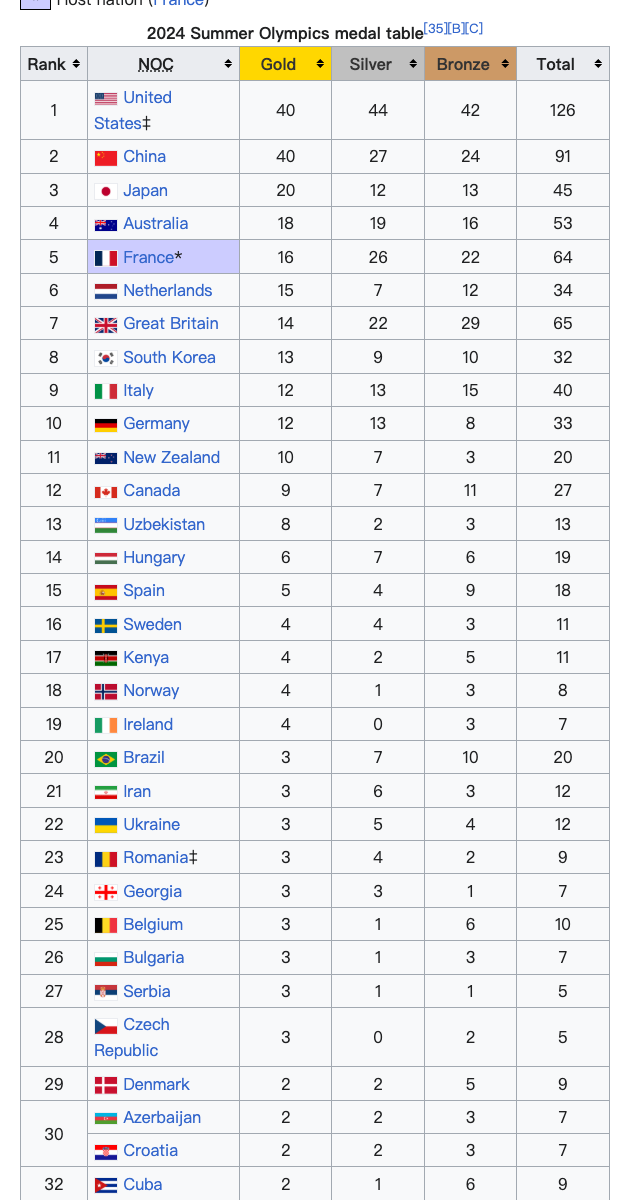
Excel output from the same run
| Rank | NOC | Gold | Silver | Total |
|---|---|---|---|---|
| 1 | United States | 40 | 44 | 126 |
| 2 | China | 40 | 27 | 91 |
| 3 | Japan | 20 | 12 | 45 |
| 4 | Australia | 18 | 19 | 53 |
32 visible rows were exported to XLSX with headers and numeric columns kept separate.
Use cases
When to use this converter
Start with the real task at the top of this page: upload, preview the extracted structure, then download the output that matches the next step in your workflow.
Printed table photos
Skip manual typing when a price list, schedule, form, or stock sheet only exists as a photograph.
Screenshot tables
Move tabular screenshots from reports, dashboards, and web apps into analyzable spreadsheet cells.
Lists and inventories
Turn product lists, stock counts, menus, and price tables into clean Excel rows.
Guide
Convert Table Image to Excel Online guide
Convert a table image when export is not available
A report, dashboard, catalog, or application screen can contain a perfectly usable table with no export button. This table image to Excel page is for that exact situation. Upload the screenshot, scan, or phone photo, inspect the detected rows and columns, then download a real XLSX file instead of retyping each cell.
Screenshots from dashboards and web apps
A clean screenshot is usually the easiest source because text and borders are sharp. Capture the entire header row and all visible columns before uploading.
Photos of printed grids and lists
For price lists, schedules, inventories, and forms, take the photo straight on with even light. Crop away the desk or surrounding UI so the table occupies most of the frame.
What makes a table image easier to convert
Clear headers, visible cell borders, and a single table per image give the recognizer the best structure to work with. If a sheet is very wide, use separate screenshots with overlapping headers rather than shrinking the text until it becomes unreadable. Review merged cells and wrapped labels in the preview before export.
Use the right tool for the document type
This page is for general-purpose grids. Use the invoice, receipt, bank statement, credit-card statement, or paystub pages when the document needs domain-specific fields and cleaner structured output. They use the same upload flow but apply a more focused interpretation to the document.
Start free, no credit card required
Try it yourself — your first conversion is on us
No fake numbers, no fabricated reviews. Upload a file and see if the output works for you.
1Free AI conversion (no account)
2Credits after email verification
∞Credits never expire
Encrypted in transit & at rest
Your files are never used to train AI
GDPR & CCPA aligned
Create a free account to get 2 AI credits after email verification · 3 with Google — enough to convert several real files.
FAQ
Table Image OCR FAQ
What table images work best?
Clear JPG, PNG, scan, and screenshot tables work best. Keep the full grid visible, avoid glare, and use the preview to check headers before downloading.
Does table image to Excel cost credits?
Yes, after 1 free AI conversion. AI processing uses credits, and Pro includes 200 AI credits each month. Verify an email for 2 one-time credits or continue with Google for 3.
Are my uploaded table images stored?
No. Original uploads are used only for OCR and are not stored. Free signed-in accounts can re-download extracted results for 24 hours; credit packs and Pro retain results for 7 days. Guests do not have result history.
Related tools
More aitoexcel tools
Each page is a focused tool. Open another one when the job calls for a different output.
Extract PDF Tables to Excel Online
Extract selected PDF tables into editable Excel. Upload 1 PDF, choose the pages you need, preview rows and columns, then download XLSX.
Open toolConvert Image to CSV Online
Convert table images to CSV files. AI reads rows and columns from the picture, then prepares clean comma-separated values for export with credits or Pro.
Open toolInvoice OCR to Excel Online
Use invoice OCR to extract supplier details, dates, line items, taxes, and totals from an invoice image or PDF into editable Excel. Try 1 free conversion.
Open toolUse AI OCR across every aitoexcel tool
Start with welcome credits, buy credits for occasional work, or choose Pro when AI conversion becomes part of your workflow.
View pricing