How to Check OCR Output Before Using It in Excel
Inspect rows, totals and missing fields before using an OCR spreadsheet. See the errors and limitations found in six existing AitoExcel sample exports.

A spreadsheet can open correctly and still contain shifted columns, missing items or an incorrect total. Compare the downloaded workbook with the source before using it for expenses, bookkeeping or reporting.
What this review covers
On 15 November 2026, we inspected six existing AitoExcel input/output pairs. We compared source images and rendered PDF pages with the saved workbook cells. No new OCR run was performed and the original exports were not corrected or replaced for this review.
This is an internal review, not an independent assessment or a representative accuracy benchmark. The image and PDF invoice use the same fictional source document. The bank statement is also a fictional test specimen, not a real customer's statement. These samples cannot establish reliability across real bank and invoice layouts.
Findings you can inspect
1. Table screenshot · XLSX
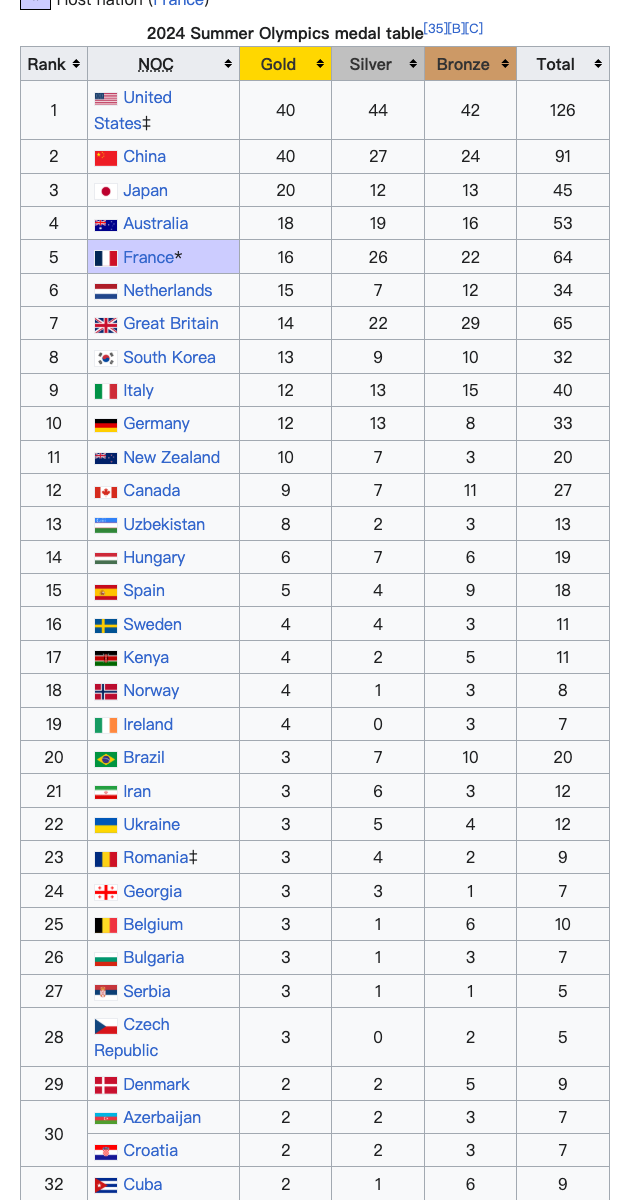
Retained: 32 country rows plus a header.
Needs attention: Croatia is shifted left in worksheet row 32. The NOC header is misspelled as NO.C.
2. Invoice image · XLSX
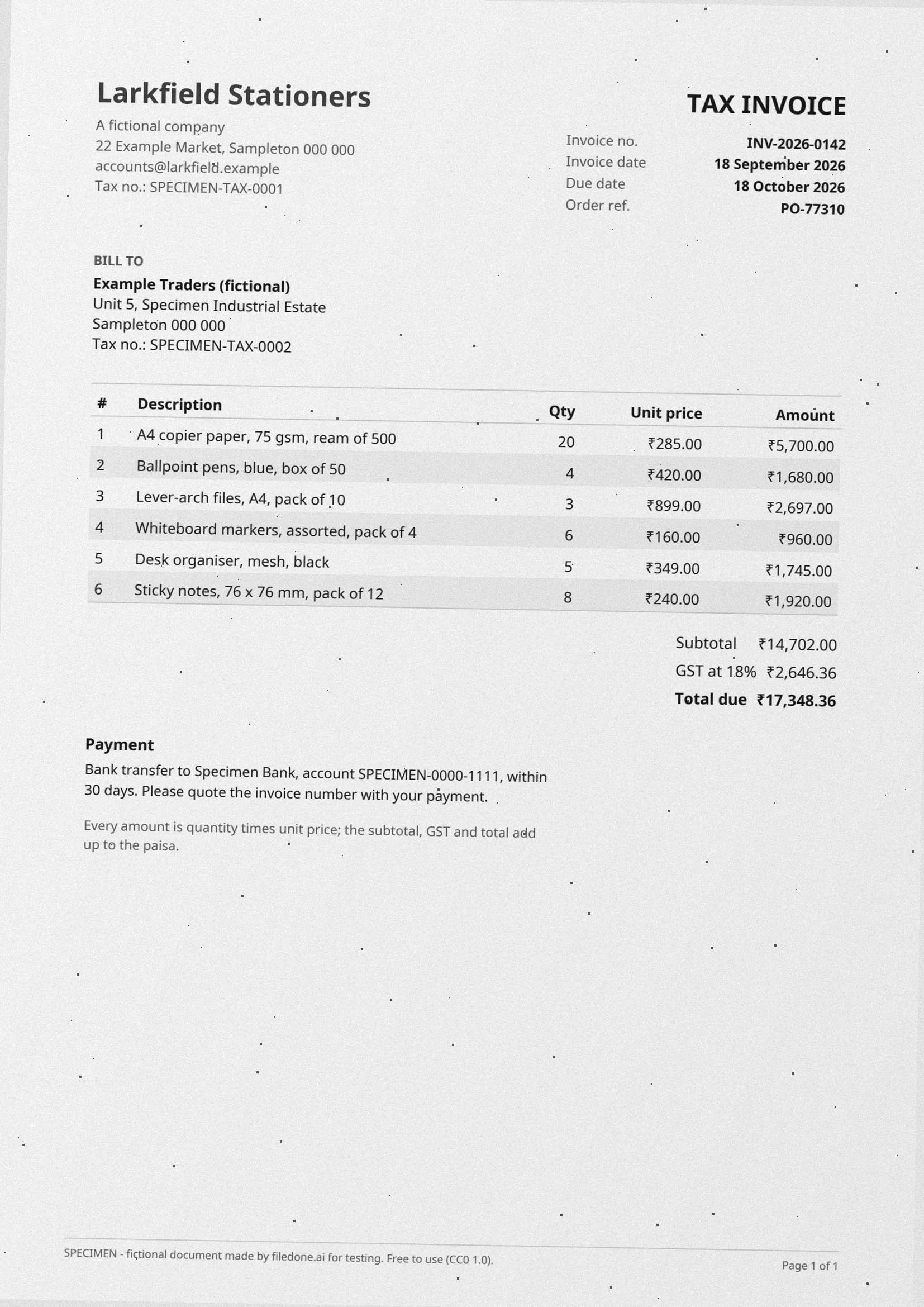
Retained: A subtotal and a mismatch warning.
Needs attention: Only 4 worksheet rows, including the header. The six printed item descriptions are missing. The exported total is 14,702.00; the source total due is 17,348.36. This result needs correction before accounting use.
3. Scanned invoice PDF · XLSX
Retained: Invoice number, dates, order reference, six items, subtotal and GST.
Needs attention: The total due and supplier/buyer blocks are missing. Item amounts alone do not make a complete invoice record.
4. Two-page test statement · XLSX
Retained: 32 transactions, opening/closing balances and a summary across 3 sheets.
Needs attention: Reviewed dates, debit/credit amounts and running balances match this specimen. Description spacing changes on page 2; the account-holder block is not included. Other layouts remain untested by this sample.
5. Receipt photo · XLSX
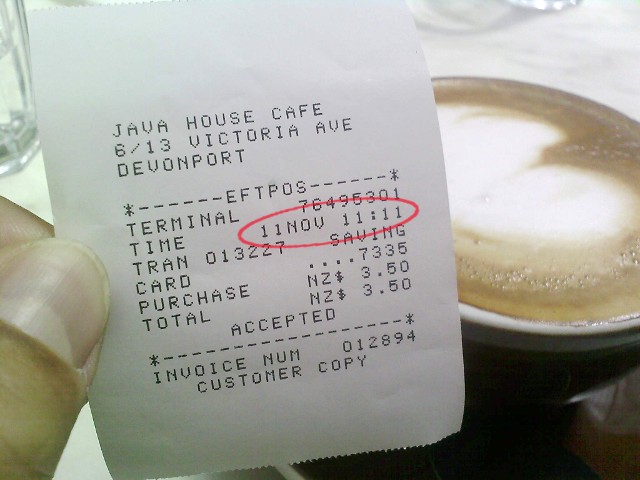
Retained: NZD purchase and total of 3.50.
Needs attention: Merchant and date are blank. The workbook is a partial amount extraction, not a complete expense record.
6. Illustrative card bill · XLSX
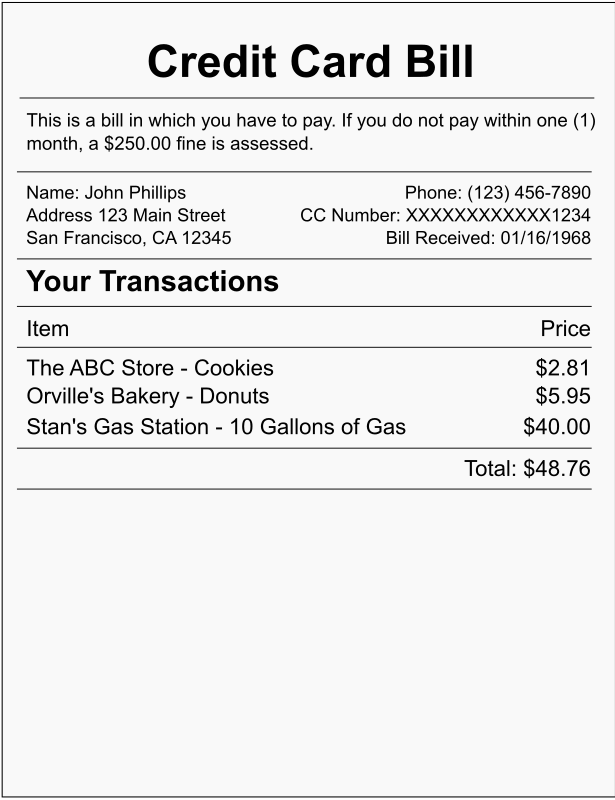
Retained: Three charge amounts and a USD total of 48.76.
Needs attention: There is an extra Item row. The statement date and account reference are blank, and two descriptions contain encoded apostrophes.
The invoice and bank specimens identify themselves as fictional CC0 test documents. The other images are existing public fixtures; this review does not establish their complete provenance or a license for third-party reuse. Inspect them here rather than treating this page as a reusable dataset license.
A practical review before download or import
- Count source items separately from headers, subtotals and opening/closing balance rows. A workbook row count is not a transaction count.
- Inspect the first, middle and last rows. A correct preview at the top can hide a shifted row near the bottom.
- Compare dates, debit/credit direction, decimals and blank values. A missing amount must not silently become zero.
- Check quantity × unit price against each item amount. Compare subtotal, tax and total due separately; finding one does not prove the others were extracted.
- Review each selected PDF page and every output sheet. Confirm that page headers and carry-forward balances are not counted as new transactions.
For your own file, start with Image to Excel, Invoice OCR, Bank Statement to Excel or the PDF Table Extractor. Use the editable result as a working draft and correct omissions against the source before relying on it.